
Nov. 4 2026
Now that you have all the necessary information, it’s time to create your individual or business account, add your roles, and
1 – Create your Account and Password
Firstly, visit the MetaMusic portal and add your personal identification. Even if you have a stage or pen name (or director/producer name), use your legal name at this stage. You can add stage or display names later in your roles.
- Good to Know: If you are an Artisti and/or SOPROQ member, make sure you use the same email to create your account since this is the one we will use to connect your MetaMusic account with your management companies.
- Artists that are members of Artisti: You can use a different email address to create your MetaMusic account than the one you use to log in to Artisti, if you wish. However, you will need to either A – add your other email address to the account managers later. We will remind you at that time! Or B – change your email address
- Makers/Labels that are members of Panorama: To connect to Panorama, the user must be an account administrator in Octave. Multiple email addresses can be added to Octave if you are not already an administrator or if you are using a different email address. If you do not manage Panorama declarations, you can invite other company administrators as needed at a later stage.
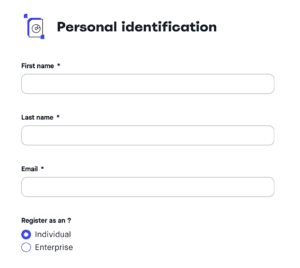
Depending on your situation, choose the type of account you are creating at this time. Regardless of the choice you make, whether you are an individual who also manages a business or vice versa, you will be able to add either party once in the account management interface.
Select all roles for your initial individual.
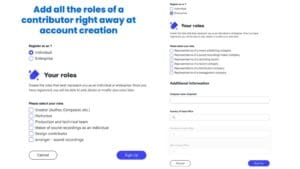
If you are creating a company, you will also need to add the company name and the country of its headquarters. This information is essential for certain roles such as producers, labels, or studios, for example.
Your registration with MetaMusic is almost complete. Simply check your emails and click on the confirmation link!
2 – Verify your account using the link in the email you received.
Your registration with MetaMusic is almost complete. Simply check your emails and click on the confirmation link!

On the destination link, you can confirm the information entered previously and add a password to complete your registration.

Your account has now been created, you now have access to MetaMusic!
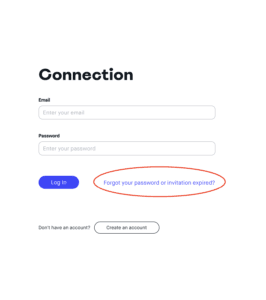
Have you received an invitation that has now expired?
If your confirmation email or invitation has expired (it’s valid for a limited time), no problem. By going to the homepage of the MetaMusic portal, you can restart the process in the same way as if you had forgotten or lost your password.
You will then have a few sections to quickly complete to finalize your account and maximize individual and collective benefits!
3 – Complete your Profile
Once in the MetaMusic portal, go to the Individuals section in the left-hand menu and select the Individual that you just created.
You need to add the details of the Individual or Company by clicking on Edit on the right-hand side:
- Year of birth or founding of the company
- Country/Province/City of residence or registered office
- And click on Save
Answer the questions about Identification and Status now by clicking on Edit. This is a self-reporting section that will be used to identify Canadian, Quebec, and Indigenous content.
- Canadian
- For individuals, this refers to your status in Canada, whether you are a citizen or a permanent resident.
- For businesses, Canadian status is determined by a combination of effective Canadian control of the business and the establishment of the head office in Canada.
- If your place of residence is outside Canada, this status will automatically be No.
- Quebecer
- For individuals, Quebecer status is partly determined by your place of birth or residence but is also linked to your artistic practice. If your career began in Quebec or developed specifically and/or primarily within Quebec, the answer is yes. Similarly, if the creator or contributor identifies as Quebecer in the media, in their marketing, or if they are considered Quebecer by the media and by explicit and credible sources, the answer is also yes.
- For businesses, Quebecer status is determined by a combination of effective control of the business by Quebecers and the establishment of the head office in Quebec.
- If your place of establishment is outside Quebec, this status will automatically be No.
- Indigenous
- For individual creators and contributors, this involves answering the question “Do you identify as an Indigenous person, i.e., First Nations, Métis or Inuit?”.
- For businesses, Indigenous status is determined by a combination of effective Indigenous control of the business and the establishment of the head office in Canada.
This section will be expanded in the future to include more details and local and regional identities such as Canadian Francophone communities or Indigenous Communities and Nations, as well as foreign nationalities.
4 – Add or complete your roles
If you did not add all your roles when creating the account, it is now time to add the necessary roles and complete them with the information that you will have previously identified and gathered as explained in this article.
As a reminder, here are the possible roles you can add to your various individual or corporate profiles:
Rôles individuels
- Creators (songwriters, composers, translators, arrangers, etc.)
- Artists
- Individual Makers
- Producers et Technical Team
- Studio Arrangers
- Design and cover art contributor (if you create illustrations, photos, text, graphics, etc.)
Rôles entreprises
- Publisher
- Maker of sound recordings
- Record Label
- Studio
- Distributor
- Manager
Depending on the roles you already have or have just added, you will see colored tiles with your roles.
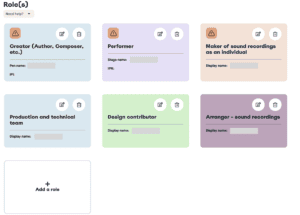
Les rôles individuels de MétaMusique
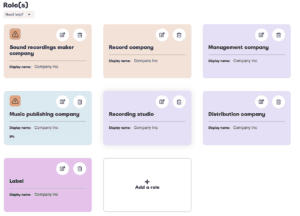
The company roles in MetaMusic
You will be asked for certain information to complete your roles:
- Display name (if different from your legal name, such as a pen name or stage name) – available for all roles including directing
- A unique identifier or a connection with a management company (for the Producer, Publisher/Songwriter and Performing Artist roles)
If a role is incomplete, this icon will be visible  And you can modify, complete, or delete each role using these icons:
For the roles of editor or creator:
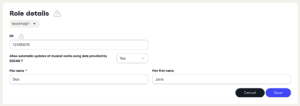
- Modify the role details and then add your IPI, which is required to access the import of your SOCAN catalog
- A pen name is optional since SOCAN primarily lists your legal name. However, if you add one, it will be used and displayed for your credits
- Adding your management company(ies) is currently optional but could become mandatory in later phases that would include direct reporting to one or more management companies
For Maker Roles (individual or company)
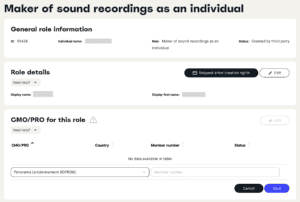
- If you have a display/artist name as a maker, edit the role details and then add it.
- If you are a Panorama member, click Add in the Management Company section, select Panorama (the default choice), and then add your membership number. If the email address used is associated with your Panorama account, the profile will be validated by a
 . If it is not already set up, you can add multiple email addresses to the Panorama account and/or add your Panorama-affiliated colleagues to the account (see below).
For the Roles of Performing Artists
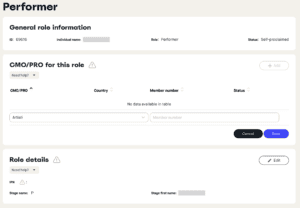
- If you are an Artisti member, click Add in the Management Society section, select Artisti (the default choice), and then add your membership number. If the email address used is associated with the Artisti account, the profile will be validated by . If it is not, you can add the active email address to the Artisti account as a MetaMusic manager (see below).
- The connection with Artisti will retrieve your artist name, your IPN and the groups you are associated with.
- If your artist name is in ALL CAPS, you can change it to the correct capitalization.
- By accessing your groups, you can invite other group members, but they will also be automatically added when they connect with Artisti.
- It also allows you to declare to Artisti at the publication level when you are part of the line-up of performers.
- If you are not an Artisti member, you will need to complete your IPN and manage your groups manually.
- The connection with Artisti will retrieve your artist name, your IPN and the groups you are associated with.
Performers can add the same role multiple times. This is relevant if you have a solo project that is also your stage name but you want to have another solo artist credited, or if you want to be credited for a contribution under your legal name, for example. In the event of doubt, contact the team.
For all other Roles
Although there is nothing to add to complete the other roles, you are encouraged to do so in certain situations:
- If you have an artist name you use for business (such as producer, illustrator, arranger, etc.), you can add them.
- If you are a member of a management society like Panorama as a producer or in another role, this situation is quite rare, and we recommend that you add a Maker role and the connection to it (see above).
At this stage, your profile is almost complete and you can be added as a contributor to all your creations.
5 – Add your Alias (if any)
Before proceeding to this step, complete all your stage names or aliases in the sections appropriate to your roles. This section will allow you to add any other names, nicknames, or other names that people in the industry might refer to you as. They will be able to find your profile using the various aliases and thus identify you correctly. By default, this section includes:
- your legal name (in any order)
- your pen names or other names in your roles
You can add other variations of your name or spellings often used incorrectly if your name is confusing or unique. If you have a business and the full name on file differs from the names used above, now is the time to add it to complete your business aliases.
- A nickname widely used in the industry
- Variations of your name often used by mistake (for example, Guyaume or Guillaume)
- If you are a business, you can add your full name as registered with the Registrar of Companies (e.g., XYZ Records Inc. if you have added it).
5 – Add your management team (if necessary)
MetaMusic allows you to add managers to any profile, whether it’s an individual or a company. You can therefore add your managers, rights managers, publishers, producers, etc. if you are an individual, or your employees and collaborators if you are a company. There are three possible access levels for a manager:
- Administrator: It allows all access, including adding new account managers, declarations, documentation, and stakeholder access privileges. This is the default level for stakeholder creators/owners.
- Read-Write: This access level allows everything except user management. It’s the default level for managers who create a profile on behalf of one of their artists, leaving the creator with full control of their account.
- Read Only: This level only allows reading account information and details without the ability to modify them. It can be given to a person for verification or other equivalent tasks.
6 – Verify ISNI
Once all your roles, usernames, and aliases are added, you can now check whether or not you have an ISNI, the International Standard Name Identifier. This identifier, increasingly used and required by platforms, allows for the unambiguous identification of contributors to a work, sound recording, or publication. It applies to everyone, individuals and companies alike, regardless of their role. And it’s quite possible you already have one, or even several! As a registration agency, ISNI helps to clean things up and gain a clearer understanding.
Therefore, it is easy to validate your ISNI directly in MetaMusic by clicking on the button:
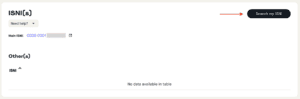
On the results page, you will find the search criteria that were used and a list of results obtained from the international ISNI database:
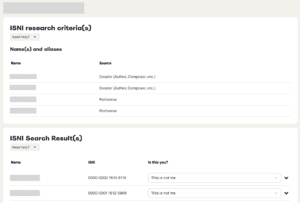
First, verify that all your aliases and other names have indeed been used in the search. If not, cancel the operation and add them back (see step 4).
From the results, open the records using the icon  to discover the associated creations and confirm whether they are indeed from you or your company, you will be able to see what type of creator it is, what type of creation it is, and a list of those creations.
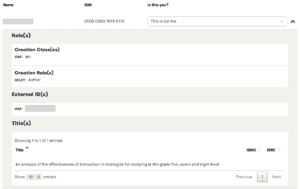
Validate the result(s) according to these scenarios
-
-
-
- There is only one outcome, and that is definitely you or your company: Select Global Individual from the drop-down menu:
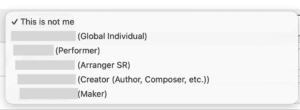
- There are several results, and they are indeed all you under a single name: Select each ISNI by assigning it to your overall Individual profile as shown in the previous image. All ISNIs will then be grouped in your profile. They will later be merged, and you will have only one.
- There are several ISNIs and one of these ISNIs relates to my solo/individual artist project or other public identity: This is the moment when you need to pay particular attention.
- There is no ISNI related to me.
- There is only one outcome, and that is definitely you or your company: Select Global Individual from the drop-down menu:
-
If you have any questions about your ISNI, contact us or schedule a consultation! We would be happy to assist you with managing your ISNI.
-
And Now?
Now that you have gathered your basic information, you can go create an account on the MetaMusic portal. Once your account is created, you can gather your collaborators in several ways, which you can discover here.
If all your collaborators are already active or if you are working solo, you can already start documenting:
- the works already registered with SOCAN by importing your catalogue
- the sound recordings of which you are the producer
- the releases for which you are the maker or label
- the submissions to management companies and metadata exports
Don’t forget that MetaMusic invites you to sessions to help with metadata documentation. Come see us with your questions!